
Personal — ~/.claude/skills
Available in every project on this machine. This is where a Skill goes when you want it everywhere: a code-review checklist, your writing style, a deploy runbook.
Claude Code loads Agent Skills from ~/.claude/skills. That works until you have a second agent, a second machine, or a Skill you want in some projects but not others — then you are maintaining copies. This page shows the real directories, the manual install, and what a Skills manager changes.
Last reviewed:
Claude Code discovers Skills on the filesystem, not through a registry. A Skill is a folder with a SKILL.md file at its root; the folder name is the Skill name. There are two locations, and they are not interchangeable.
Available in every project on this machine. This is where a Skill goes when you want it everywhere: a code-review checklist, your writing style, a deploy runbook.
Available only inside that repository, and committable, so the whole team gets it on clone. This is where a Skill goes when it encodes something about this codebase specifically.
~/.claude/skills/ # personal — every project on this machine└── code-review/ ├── SKILL.md # required: name, description, instructions └── reference/checklist.md # optional: anything the Skill loads my-app/.claude/skills/ # project — only inside my-app└── deploy-runbook/ └── SKILL.mdClaude Code is one of 7 supported tools with verified project-level Skill support. Most of the rest read only a personal directory, which is why a Skill that lives in a project folder is not automatically portable to another agent.
No tool is required for this. Four steps, and it is worth doing once — knowing what the manager writes to disk is the difference between trusting it and hoping.
It does not exist on a fresh install. Claude Code reads it if it is there and ignores it if it is not, so creating it is safe.
mkdir -p ~/.claude/skillsCopy or clone the folder so that SKILL.md sits directly at its root — not one level deeper. A repository containing several Skills has one folder per Skill; move the folders, not the repository.
git clone https://github.com/some/skill-pack.git /tmp/skill-packcp -R /tmp/skill-pack/skills/code-review ~/.claude/skills/A Skill is instructions your agent will follow with your credentials and your filesystem. Read what it tells the agent to do — especially any shell commands, network calls, or paths outside the project.
Check the filesystem first, then ask the agent. If ls shows the folder and Claude Code does not mention the Skill, the problem is almost always SKILL.md — a missing name or description field, or the file one directory too deep.
ls ~/.claude/skills# code-review # then, in Claude Code:# "which Skills can you see?"A Skills manager does not copy the Skill into each tool. It keeps one folder in ~/.skills-manager/skills and writes a link into the directory each tool already scans. Claude Code sees a normal folder at a normal path; so does every other tool. There is still exactly one SKILL.md.
$ ls -l ~/.claude/skills/animate ~/.codex/skills/animate lrwxr-xr-x ~/.claude/skills/animate -> ~/.skills-manager/skills/animatelrwxr-xr-x ~/.codex/skills/animate -> ~/.skills-manager/skills/animateSkills Manager is a free, open-source desktop app for macOS, Windows and Linux. It does not replace Claude Code or wrap it — it manages the folder Claude Code already reads.
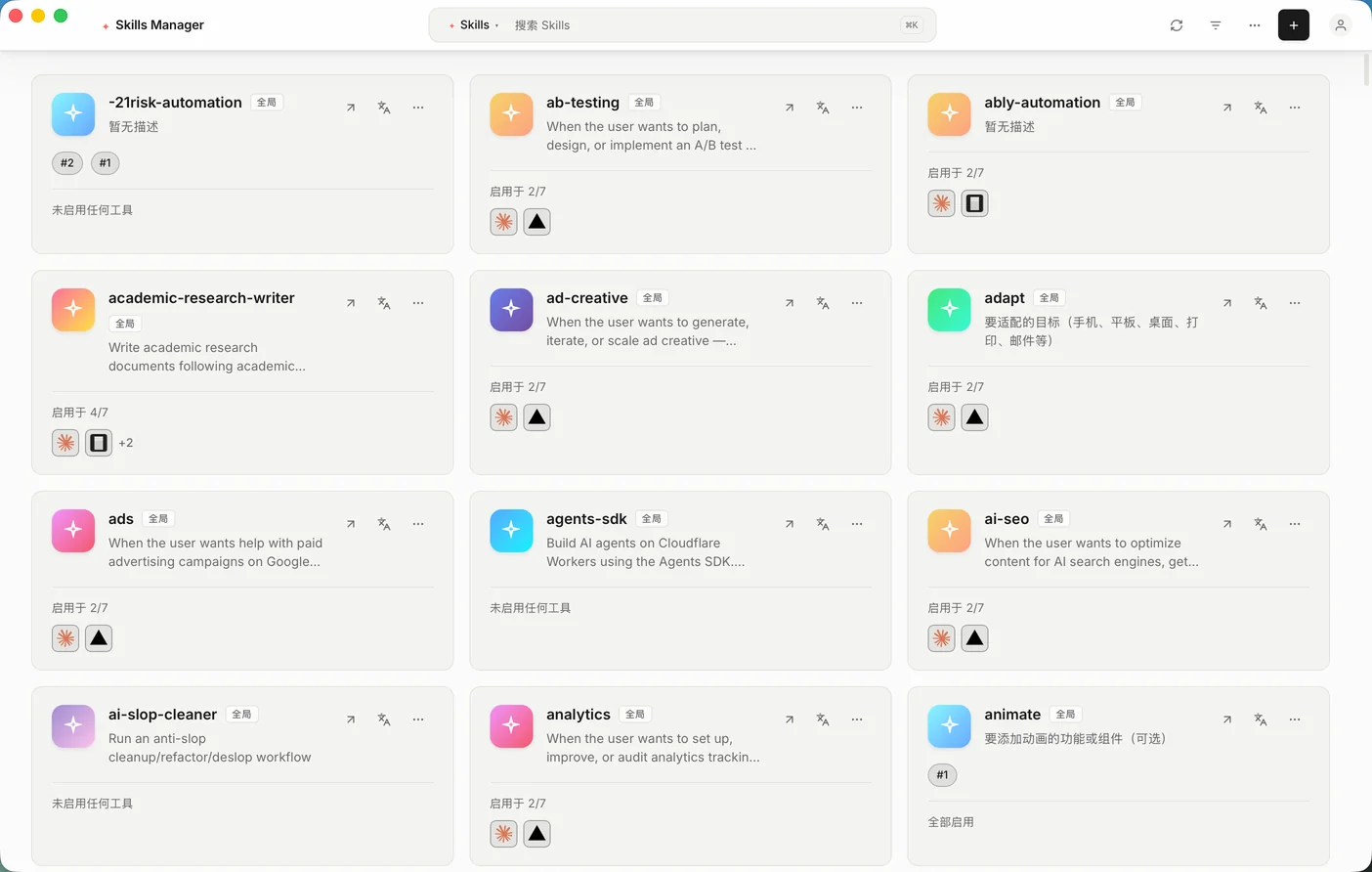
On first run the app scans the Skills directories of every tool it detects, including ~/.claude/skills, and lets you pick which ones to move into the central library. Duplicates of the same Skill across tools collapse into one entry. You do not restructure anything by hand to get started.
A toggle per tool, per Skill. Turning it on writes the link into that tool’s directory; turning it off removes the link only. The source folder in the library is never modified and never deleted, so switching a Skill off is not a decision you have to be brave about.
Because each tool points at the same file, an edit in the library is immediately what Claude Code, Codex, Cursor and the rest read. There is no sync step to remember and no copy to fall behind.
36 static rules across destructive commands, network calls, privilege escalation and hidden payloads run locally against a Skill before you enable it. The scan is deterministic and offline — the Skill text is not uploaded anywhere.
The row below is generated from the same table the app ships, so it cannot drift from what the desktop app actually writes.
| Field | Value |
|---|---|
| Tool | Claude Code |
| Personal Skills directory | ~/.claude/skills |
| Project Skills directory | <project>/.claude/skills |
| Detected by | claude |
| Connection method | Symlink on macOS and Linux, junction on Windows |
Four failures account for nearly all of them. Each has a specific cause, and in three of the four cases the obvious fix is the wrong one.
A Skill in ~/.claude/skills is personal: it is available in every project on that machine and it is not part of any repository. A Skill in <project>/.claude/skills belongs to that repository: it is available only inside it, and it can be committed so everyone who clones the repository gets it. Use the personal directory for how you work, and the project directory for facts about that codebase.
No. Copying a folder into ~/.claude/skills is a complete install, and for a handful of Skills in one tool it is enough. A Skills manager becomes worth it at the second directory: once the same Skill has to exist in ~/.claude/skills and ~/.codex/skills, you are maintaining copies that drift, and there is no per-tool way to switch one off short of deleting it.
Check the layout before anything else. The path has to be ~/.claude/skills/<skill-name>/SKILL.md with no directory in between — copying a whole repository instead of the Skill folder inside it puts SKILL.md one level too deep, which is the most common cause. The second most common is front matter missing a name or description. Then start a fresh Claude Code session; a session that was already open when you added the folder is not a valid test.
Yes, for project Skills: <project>/.claude/skills is inside the repository, so committing it ships the Skill with the code. Personal Skills in ~/.claude/skills are outside any repository and are not committed. If a Skill is useful across your own projects but you also want it version-controlled, keep it in a library and connect it to each tool by link rather than copying it into several repositories.
Skills Manager scans the Skills directories of every tool it detects on first run, including ~/.claude/skills, and shows the Skills it found with checkboxes so you choose what to bring in. Selected Skills move into the central library at ~/.skills-manager/skills, and copies of the same Skill found in several tools collapse into one entry. Detection itself is read-only — nothing is written until you import or enable something.
Yes. Each Skill has an independent toggle per detected tool, so a Skill can be live in Claude Code and absent from Cursor at the same time. Turning it on writes the link into that tool’s Skills directory and turning it off removes the link only — the Skill folder in the library is not modified and not deleted, so switching a Skill off costs nothing to undo.
Free and open source. macOS, Windows and Linux. No account needed to manage Skills locally, and no telemetry in the app.
MIT licensed. Detection is read-only until you enable a Skill.